How to Send a Gift Preview
Last updated: September 29, 2026
A preview lets you see exactly what your recipients experience before you send. There are three ways to do it.
Quick preview from your dashboard
Open your Gifted dashboard.
Find and click on the gift under Recent activity.
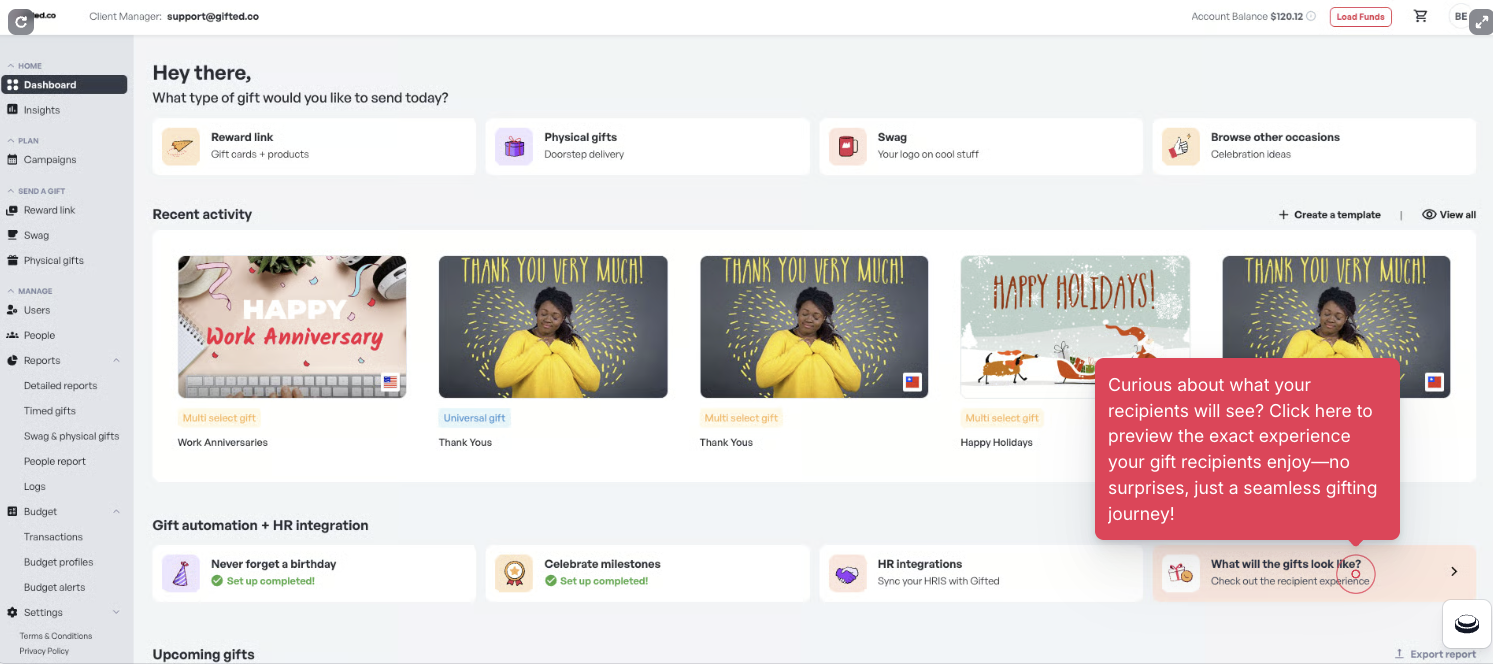
3. Click on Preview gift at the top right of your screen.
4. Enter your email, phone, and name followed by Send.
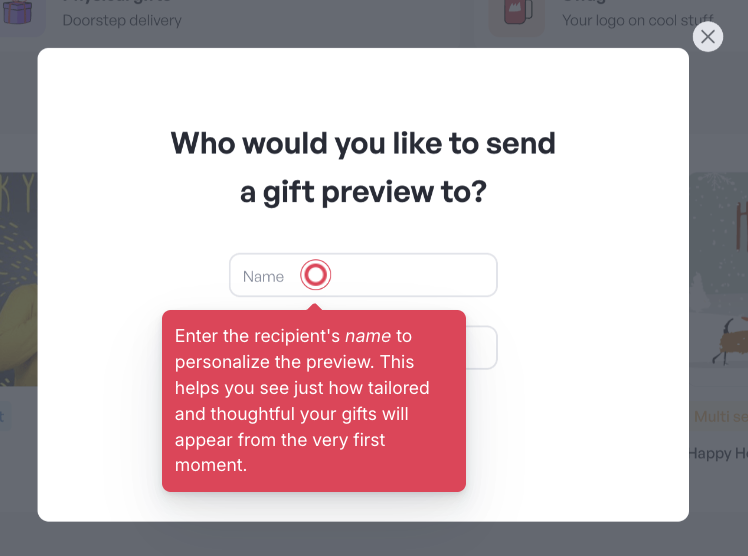
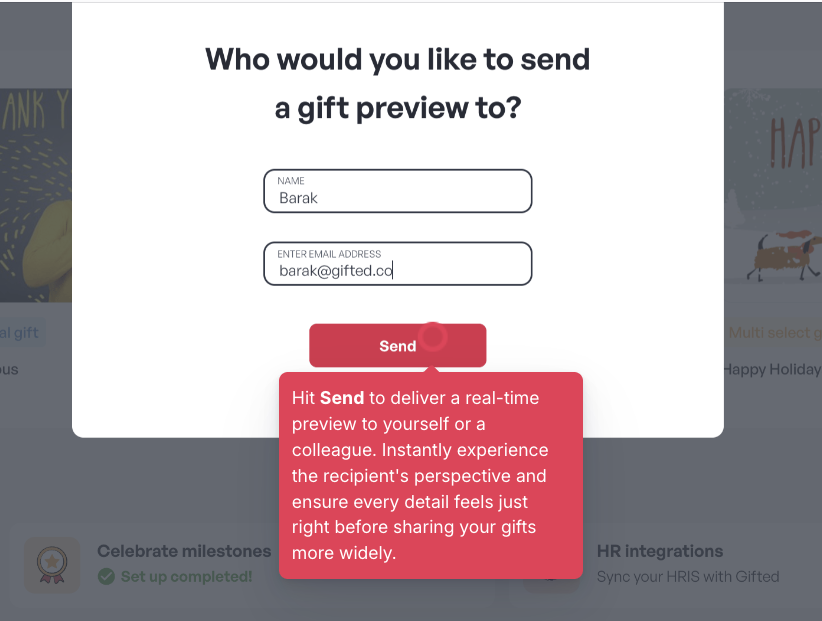
You'll get an email and/or text message with a link to view the recipient experience.
Preview a specific template (Reward Link Tab)
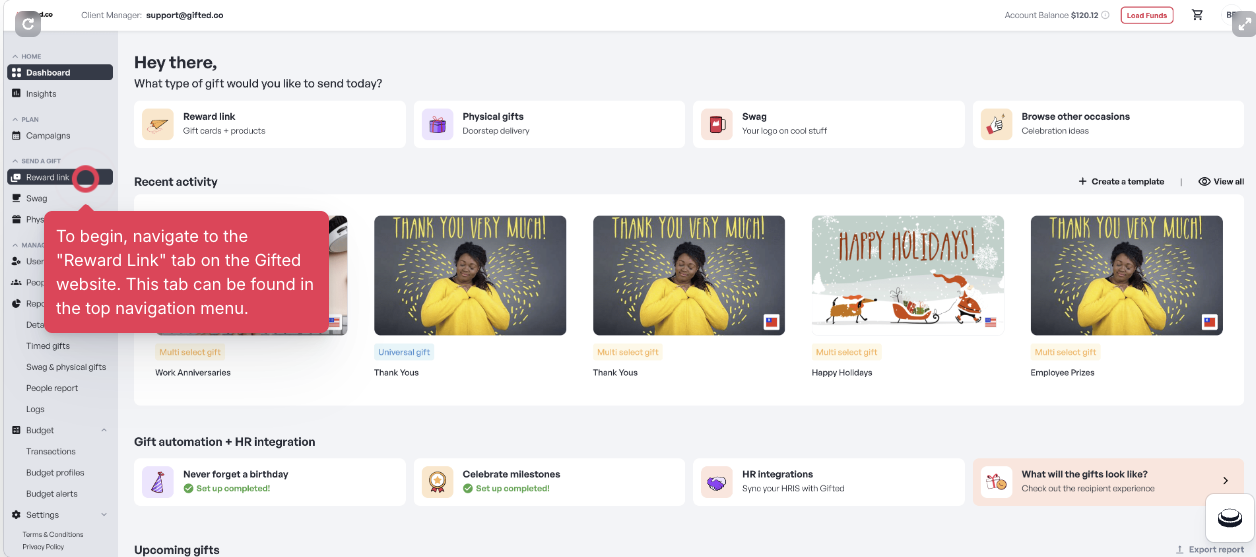
Go to the Reward Link tab in the top navigation.
Click on the template
Click on Preview gift at the top right of your screen.
Enter your email, phone, and name followed by Send.
Preview a specific campaign (Campaigns tab)
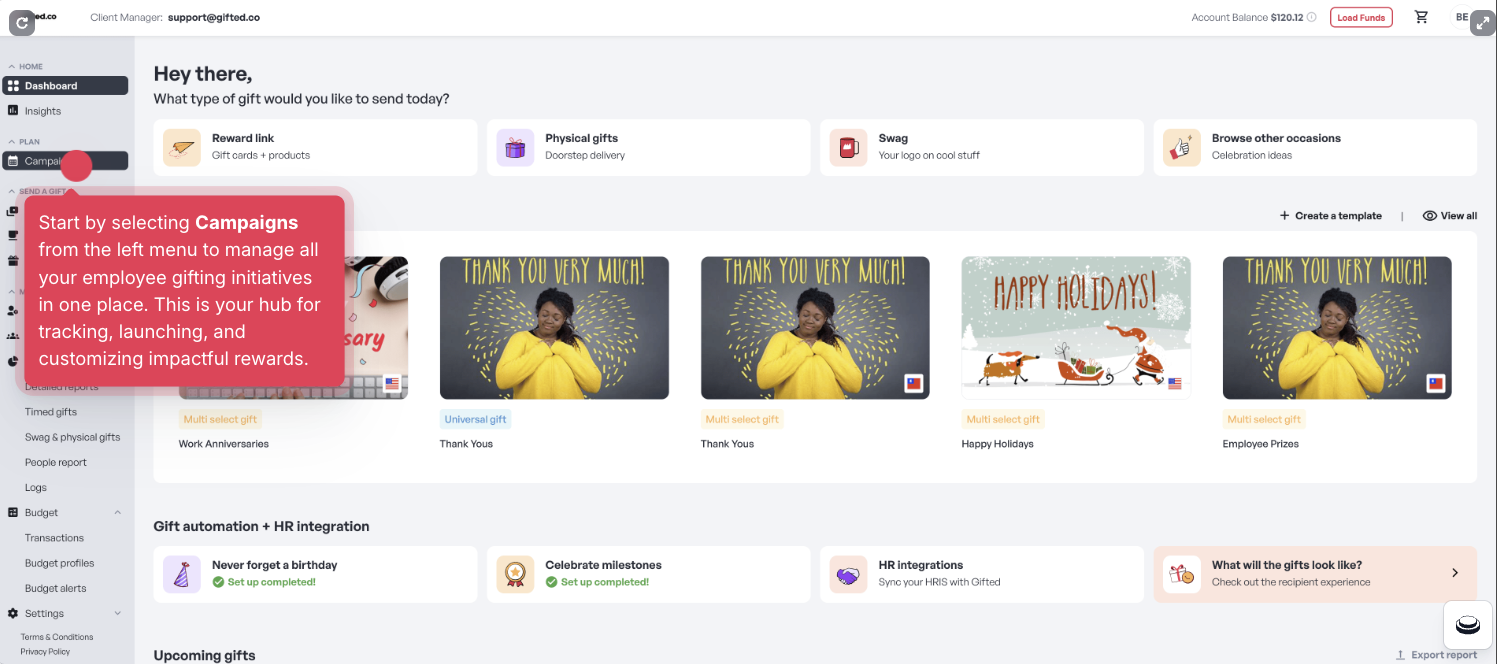
Go to the Campaigns tab.
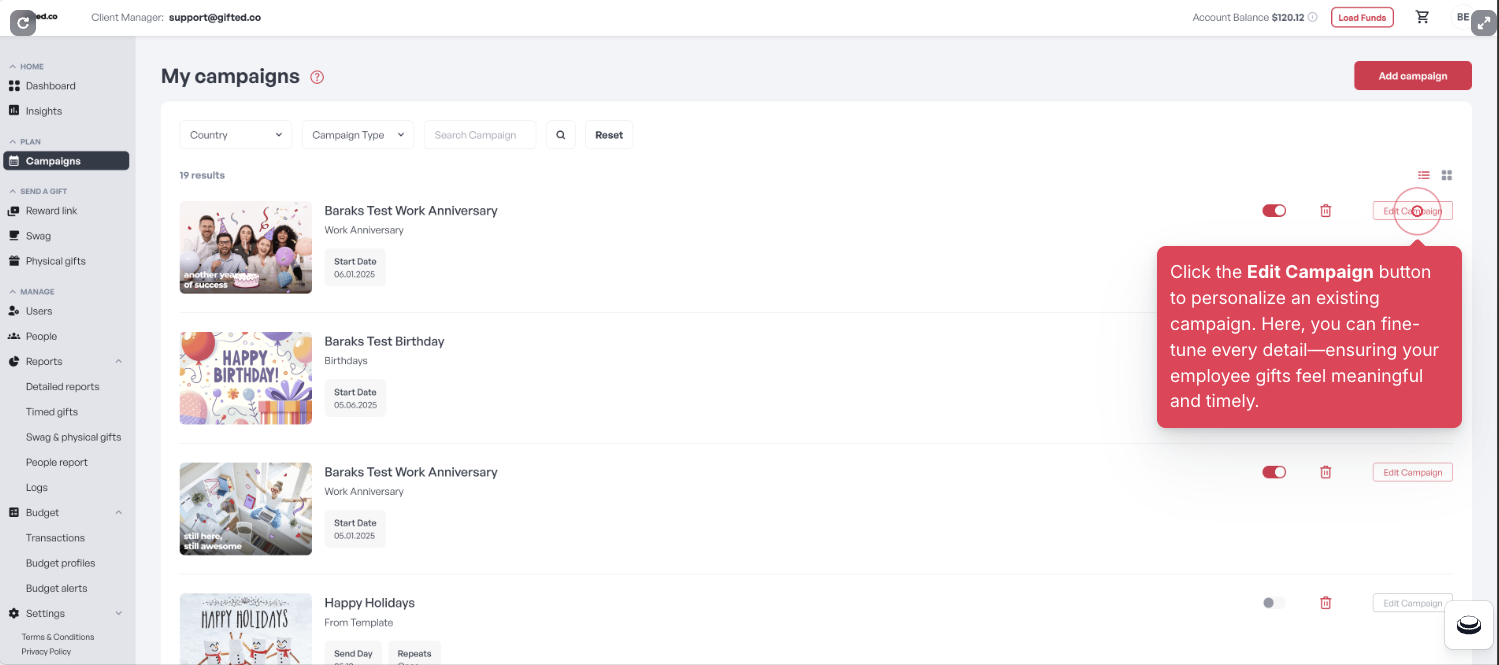
Find your campaign and click Edit Campaign.
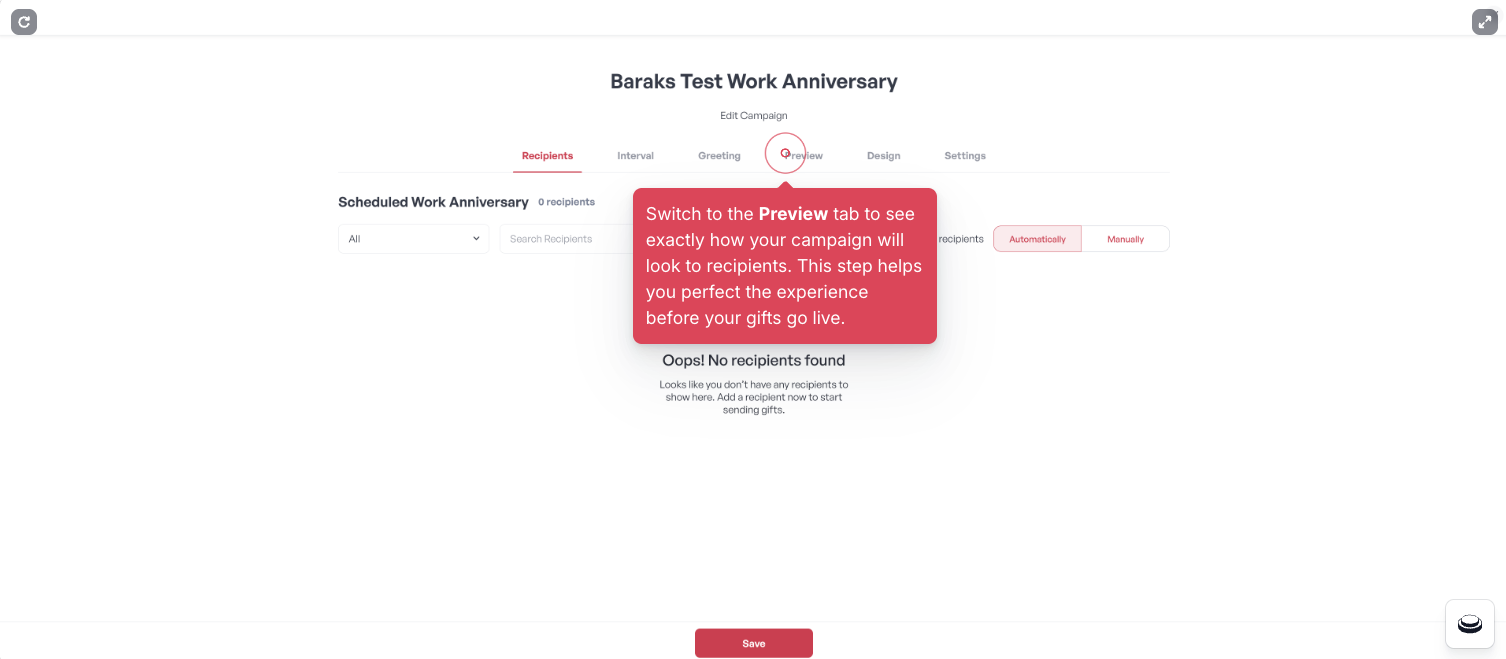
In the editor, open the Preview tab.
4. Enter your email and/or phone, and name.
5. Click Send to preview the gift.
Please note:
The gift value appears at the top of the page, and you can add items to your cart. Since this is only a test, you won't be able to check out or redeem any gifts.
This article is specifically relevant for gifting admins.